
Import my file
This guide explains how to import your file, understand the validation steps, and resolve any errors detected.
Once your billing file is correctly structured, you can import it into Fincome to automatically populate your key metrics: MRR, ARR, churn, revenue recognition, etc.
1. Available import methods
Option A — Excel file (.xlsx)
Download the Excel template from Fincome: Settings → Connect a billing system → Import a .xlsx file
Fill the file with your billing data according to the rules seen in Prepare your import file.
Import your file directly
.xlsxinto Fincome. Be sure to fill in the "Import end date *" with the last invoice issue date (i.e. the date from the "date" column that is closest to today).
Tip : start with a test of 5 to 10 rows to validate the format before importing your entire history.
Option B — Google Sheet (recommended if < 100,000 rows)
Import the template into your Google account: Settings → Connect a billing system → Sync a Google Sheet document.
Fill the file with your billing data according to the rules seen in Prepare your import file.
You can check your file with the "Check file" button.
Share the file, read-only, with our Fincome account: fincome-ggsheet-connector-prod@fincome-ggsheet-connector-prod.iam.gserviceaccount.com
Paste the link on the Fincome page
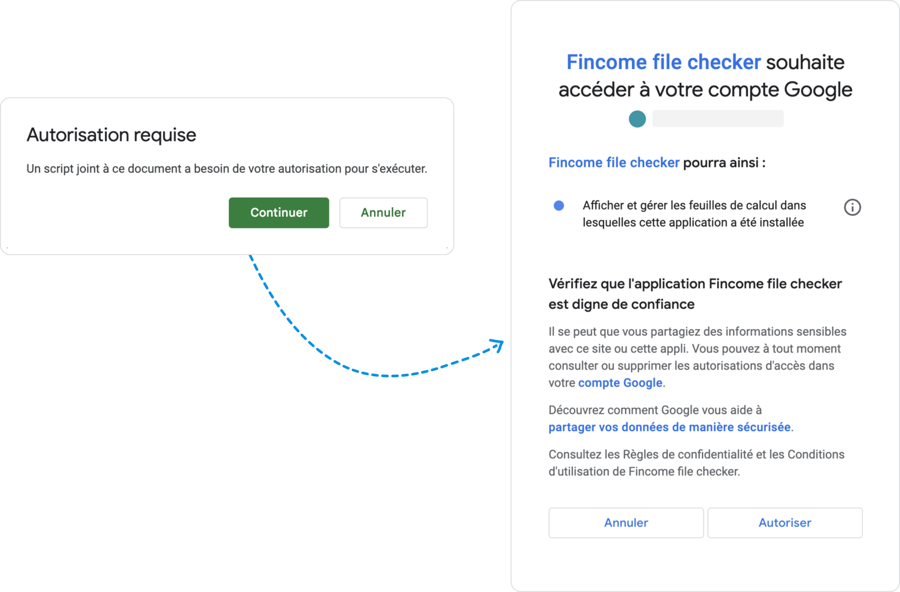
On first launch, an authorization will be requested:
2. Upload the file to Fincome
Log in to Fincome then go to: Settings → Connect a billing system → Import a .xlsx file
Name the source (e.g. “History 2023” or “Additional Stripe import”).
Select the import end date.
Upload your Excel file.
Fincome automatically analyzes the structure and validates compliance.
In case of an error, a precise message is displayed with the affected rows and fields to facilitate correction.
3. Troubleshooting: common errors
Inconsistent customer/invoice information
The same ID (invoice_id, customer_id) contains different attributes
Harmonize the fields across all affected rows
Invalid type
Unrecognized value in the column type
Use only subscription, one_off or future_sub
Invalid period
period_start ≥ period_end or dates in text format
Check the Excel format and chronological order
Invalid status
Invoice or subscription status not allowed
Correct according to accepted values (open, paid, etc.)
Rejected dates
Values not recognized as Excel dates
Convert the column back to type Date (DD/MM/YYYY)
Non-numeric amount
Cells containing text instead of a number
Reformat the column as Number, without thousands separator
💡 Advice : to quickly identify a problem, test with a mini-file of 3 to 5 rows before reimporting the whole dataset.
4. Post-import checks
Once the file is imported and validated, you can verify data consistency:
Compare your metrics before/after import: MRR, ARR, churn, total revenue.
Open the Revenue dashboard to distinguish one-off revenue from recurring revenue.
Explore the “MRR Movements” section to analyze upsells, churns, or potential errors.
If needed, adjust lines directly in Fincome (see Adjust and correct invoice lines).
You can follow these steps.
5. FAQ — Import and validation
→ How to avoid duplicates when re-importing?
Use stable identifiers (customer_id, subscription_id, invoice_id).
To correct lines already imported, re-import the same file with the updated fields: Fincome will automatically replace the existing data.
You can also delete the previous dataset, complete it and re-import it.
→ Can we simulate the import before applying it in production? Yes. Import a test file with a few rows: you can then delete it without impact. A sample template is available in Settings → Connect a billing system → Import a .xlsx file, then click on Download the template.
→ Who can perform an import and where to find the full documentation? Only Fincome administrators have import rights. If the menu does not appear, contact your instance administrator or your CSM.
→ How are our data secured during import? Exchanges are protected by encrypted connections in transit and at rest. No data is shared with third parties without your consent. These guarantees are part of our security framework validated by the SOC II Type 1.
→ What to do if the tool reports “Invalid period” while my dates seem correct? Check:
That the cell format is set to “Date” (not text);
That no space or stray character is present;
That
period_startis earlier thanperiod_end;That the time zones of your exports have not shifted the dates (a common case with timestamps).
→ Can CARR/CMRR be tracked according to discount end dates or pricing tiers? Yes. Fincome supports tracking of ramp-up tiers and discount end dates. Just ensure that periods are correctly segmented in your subscription lines.
→ After import, how do I ensure the numbers are consistent? From your Fincome space:
Compare the total MRR/ARR before/after import,
Check the breakdown by customer, plan and currency,
Consult the MRR Movements section to detect possible inconsistencies (churns, plan upgrades, etc.).
6. Related articles
Last updated